
General Usage
Using DollyManager
Interface Overview
Learn the DollyManager library, playback, preview, tagging, connection, and path-management controls.
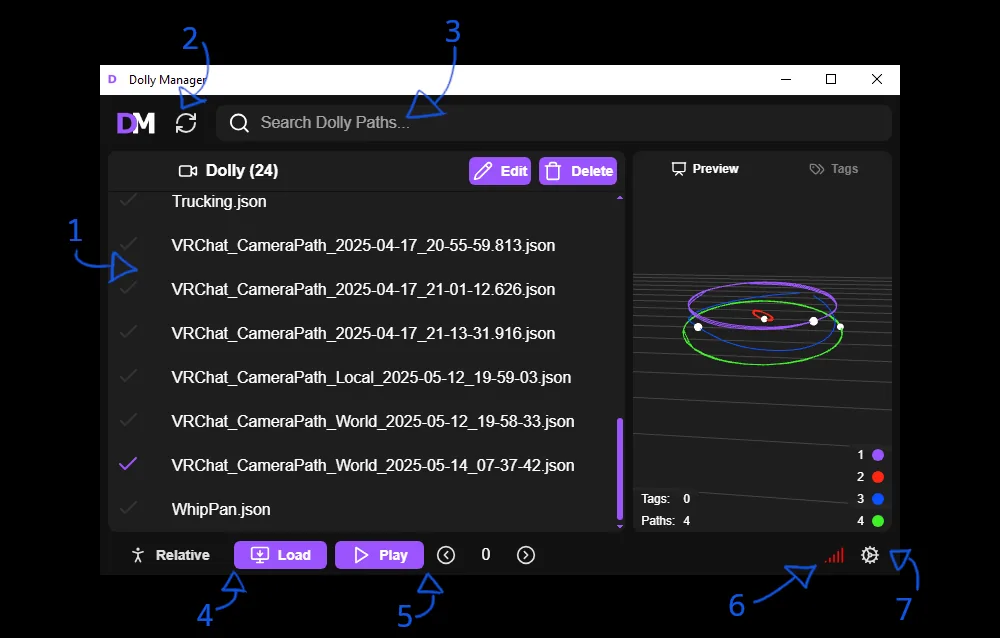
- The list of dollies, you can click to select them.
- Reload the list of dollies.
- Filter through the names and tags in the dolly list.
- Load the selected dolly into VRChat. By default, dollies will load in
globally. By enabling therelativepositioning, you will load the dolly relative to your current location and direction. - Plays the loaded dolly animation in VRChat, You can change the delay (in seconds) on the animation using the indicator to the right of the play button.
- The OSC connection status. Red indicates
disconnectedwhile green indicated the app isconnectedvia OSC. This app uses OSC Query to connect to VRChat and other applications. Clicking this button resets the OSC interface. - Open the settings menu.
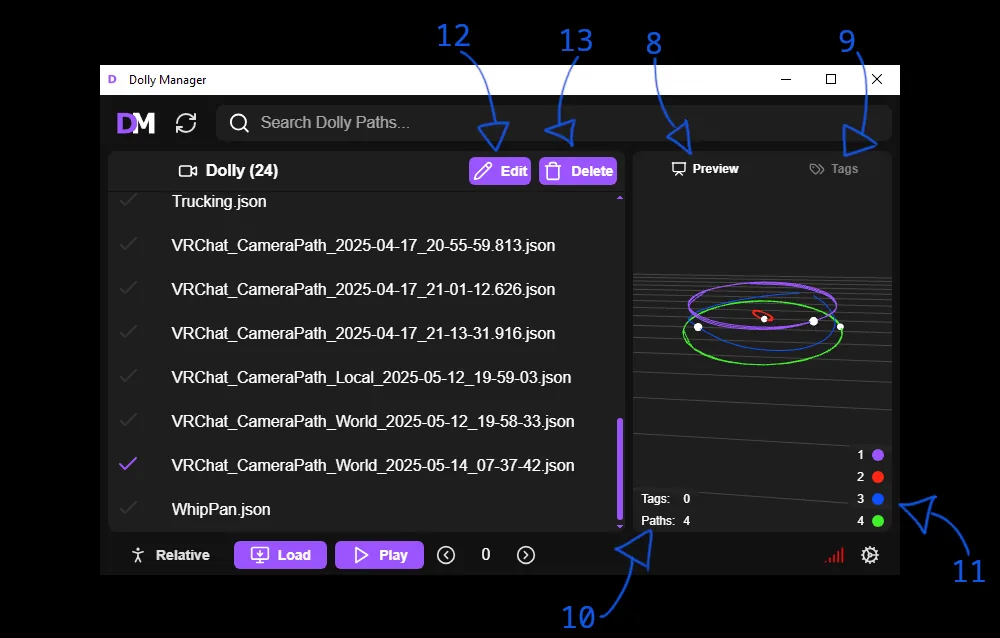
- Use the
Previewtab to view the paths of the selected dolly. - Use the
Tagstab to edit tags associated with each dolly. - These indicate the number of paths and tags.
- These link the path index to the color displayed in the preview.
- Edit the name and export the selected dolly.
- Delete the selected dolly.