
Using FitOSC
Interface Overview
Find the primary controls, connection indicators, and walking settings
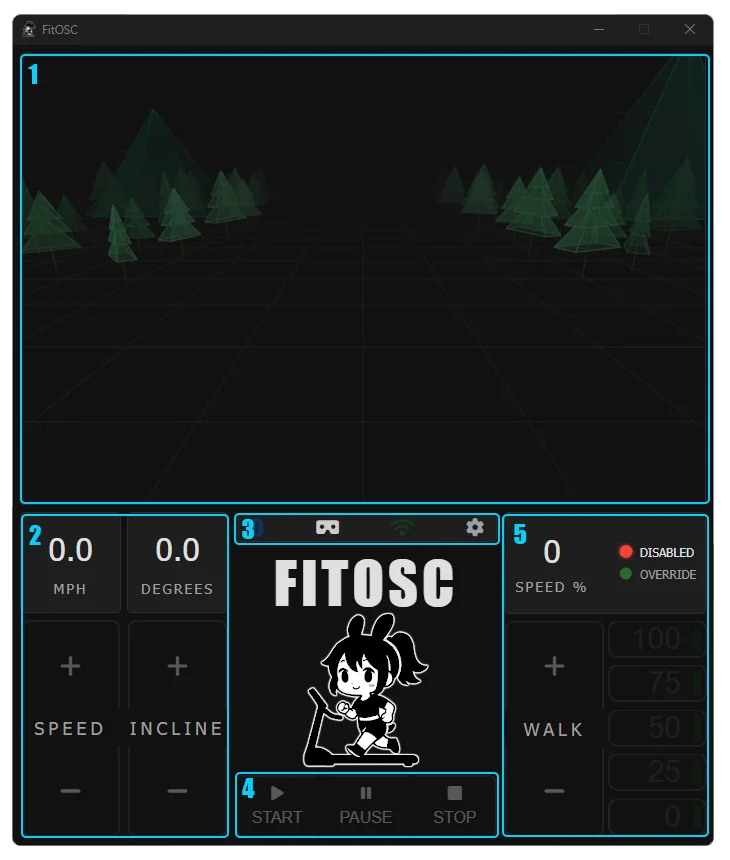
1. System preview
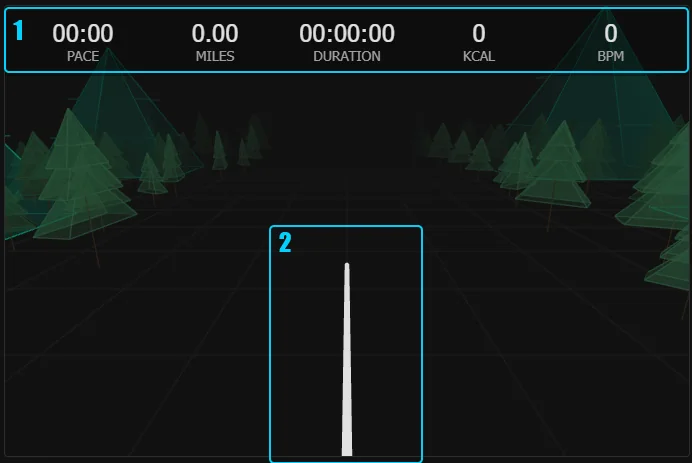
The scene at the top of the window responds to your current walking speed. It gives you a quick visual check that FitOSC is receiving movement data without requiring you to read the individual metrics.
2. Speed and incline controls
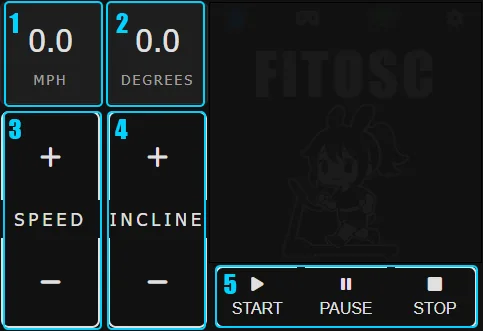
The lower-left panel shows live treadmill readings and, when supported by the treadmill, provides direct controls.
| Number | Control | What it does |
|---|---|---|
| 1 | Speed | Shows the current belt speed. |
| 2 | Degrees | Shows the current incline angle in degrees. |
| 3 | Speed controls | Increases or decreases the treadmill speed. |
| 4 | Incline controls | Increases or decreases the treadmill incline. |
| 5 | State controls | Starts, pauses, stops, or resets the treadmill. |
These controls send commands directly to the treadmill. Changes take effect immediately.
3. Connection status

The center panel shows the current state of FitOSC and its connected services.
| Icon | Connection |
|---|---|
| Bluetooth | Treadmill connection over Bluetooth Low Energy. |
| VR headset | SteamVR and headset connection. |
| Signal | OSC connection to VRChat. |
| Settings | Opens FitOSC settings. |
Connection indicators use three states:
| State | Meaning |
|---|---|
| Blinking | FitOSC is searching for the service. |
| Red | FitOSC detected a connection problem. |
| Solid | The service is connected. |
Select a connection indicator to restart that interface.
4. Walking controls
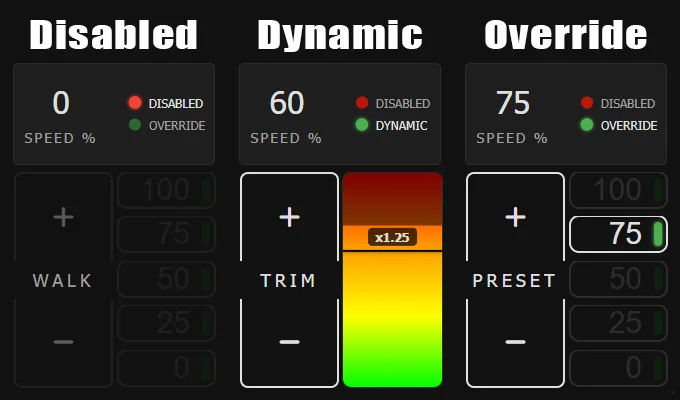
The lower-right panel controls how FitOSC sends walking movement to VRChat. Its controls change with the selected walking mode.
| Element | What it does |
|---|---|
| Speed % | Shows the locomotion value sent to VRChat as a percentage from 0 to 100. |
| Disabled (red) | Shows that FitOSC is not sending walking movement. |
| Mode (green) | Shows the active walking mode. |
| Walk controls | Increases or decreases the override speed. |
| Preset buttons | Sets the override to 0, 25, 50, 75, or 100 percent. |
See Walking modes for the controls available in Disabled, Dynamic, and Override modes.